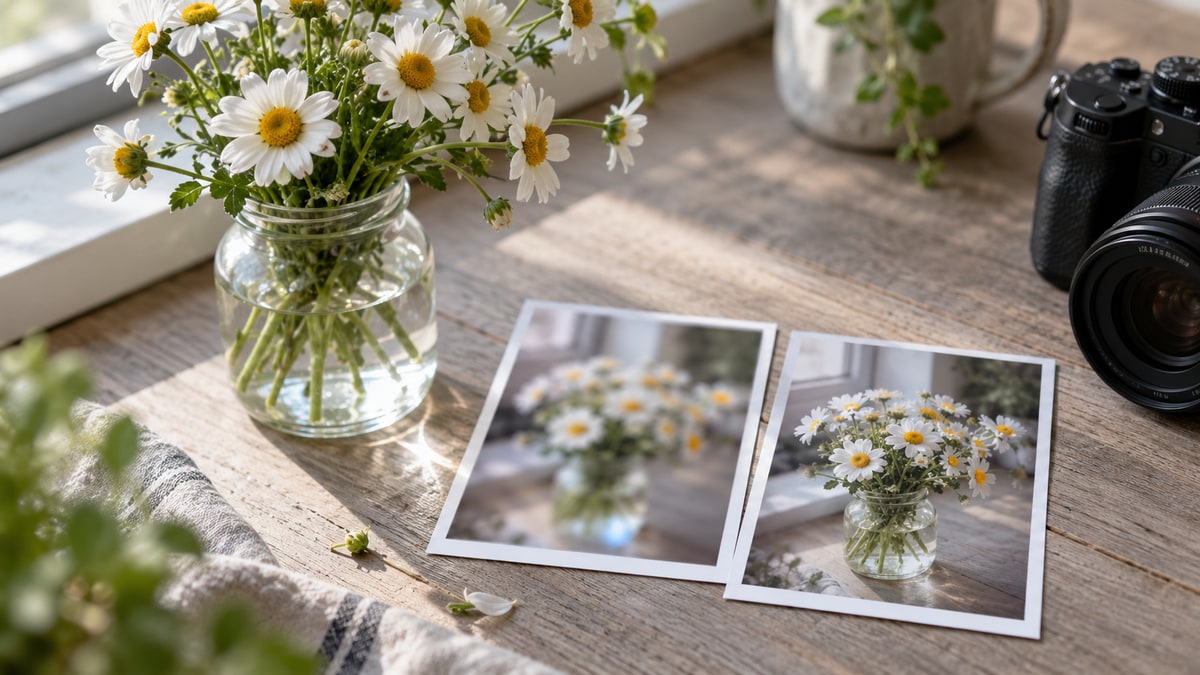
Fix the Photo Before You Prompt: How Blurry Reference Images Wreck AI Portrait Edits
Blurry selfies make AI image models invent a new face. Learn a 10-second reference photo check, when to use faithful vs. generative unblurring, and prompts that keep identity intact.
Most of the prompts on Banana Prompts start the same way: "Based on the person in the uploaded image..." That line puts a lot of trust in your photo. Maybe the selfie is soft from camera shake, or it was saved from a chat app at a fraction of its size. Either way, the model can't see your face clearly, so it fills in the gaps with a face of its own. Before you blame the prompt, check the photo. If it's soft, run it through an unblur image tool first. That small step often decides whether the result still looks like you.
Why a Soft Photo Leads to a Stranger's Face
An image model doesn't copy your face pixel by pixel. It reads your features, like the shape of your eyes, your jawline, your hairline and your skin texture, and rebuilds them in the new style. When those features are sharp, the rebuild stays close to you. When they're blurred, the model has to guess, and its guesses drift toward a generic, "average" attractive face.
You'll recognize the symptoms:
- Identity drift. The result looks like a cousin, not you. The eyes are a different shape, or the nose is narrower.
- Plastic skin. With no real texture to work from, the model paints smooth, airbrushed skin.
- Invented details. Earrings, freckles or a hairstyle show up that weren't in the photo, because the blur hid what was really there.
- Mushy text and logos. A shirt print or a sign in the background turns into nonsense letters.
Adding "keep the face exactly the same" to your prompt only helps if the face is readable to begin with. The model can't preserve detail it never saw.
The 10-Second Reference Photo Check
Before you upload, zoom to 100% on the eyes and ask yourself:
- Can you see the edge of the iris and individual eyelashes? If the eyes are one soft smudge, the photo is too blurry.
- Do edges have a double outline? That's motion blur from a shaky hand or a moving subject.
- Is everything soft, or just the face? If the background is sharp and the face isn't, the camera focused on the wrong thing.
- Do you see blocks or smears in flat areas? That's compression from a chat app or a social media download.
- How big is the face? In a group photo, a face that's only about 100 pixels across may not contain enough detail to preserve identity reliably. Cropping can isolate the person, but it cannot add missing facial detail. Look for a higher-resolution original or take a new, closer photo.
If the photo passes, go straight to prompting. If it fails any of checks 1 to 4, fix it first. If it fails check 5, find a higher-resolution original or retake the photo with the face filling more of the frame; cropping the same small image is not a substitute.
Get the Best Source Before You Fix Anything
The cleanest fix is a better original:
- Find the original file. Every screenshot and chat-app forward throws away detail. The copy in your phone's camera roll beats the one someone sent you on WhatsApp.
- Convert HEIC to JPG if your tool doesn't accept HEIC, rather than taking a screenshot of the photo.
- Scan old prints at 600 DPI or higher instead of photographing them on a table.
- Don't use deliberately blurred images. If a face or license plate was pixelated on purpose, the original detail is gone, and any tool that "reveals" it is making something up. Only use photos you have the right to edit.
Faithful vs. Generative Unblurring: Try the Faithful One First
Unblur tools work in two broad ways. The difference matters a lot when the next step is another AI model.
- Faithful restoration sharpens the detail that's already in the photo. Faces and text stay the way they were. It works best on mild to moderate blur.
- Generative restoration redraws detail that's mostly gone. The result can look sharper, but it may change faces, text and textures.
imageunblur, for example, offers both: a Basic model that restores the detail already there, and a Pro model that uses a generative model for very soft photos.
For a reference photo, start with the faithful option. If a generative unblur changes your face slightly and Nano Banana then changes it slightly again, the two drifts stack up. Two small guesses in a row can add up to someone who isn't you. Only switch to generative restoration when the faithful one can't recover enough, and compare the face against the original before you move on.
Prompts That Make the Most of a Sharp Reference
Once you have a clean photo, tell the model what to keep. These prompts make the most of a sharp reference.
Keep Identity in a Style Transfer
Based on the person in the uploaded image, create a portrait in a soft watercolor illustration style. Keep their exact facial features, eye shape, nose, jawline, hairline and skin tone. Do not change their age or face shape. Pastel background, gentle paper texture, natural light from the left.Restore, Then Restyle an Old Family Photo
Using the uploaded restored photo of an elderly man, create a colorized, photorealistic version as if taken today with a full-frame camera. Preserve every facial feature, wrinkle and expression exactly. Keep his original clothing and hairstyle. Warm indoor lighting, shallow depth of field.Product Photo With Readable Text
Place the product from the uploaded image on a white marble countertop beside a small potted plant. Keep the label text, logo and colors exactly as in the original photo. Soft morning window light, clean commercial product photography, 4:5 crop.Each prompt names the features to protect. That instruction only works because the reference is sharp enough for those features to be visible.
When to Skip the Fix and Reshoot
Sometimes no tool can save a photo. If you can't tell who's in it, the face is only a few pixels across, or motion blur has smeared the features into streaks, take a new photo. For an AI portrait, a good reference is easy to get:
- Face a light source, like a window, and avoid harsh overhead light.
- Hold the phone steady, or prop it up and use the timer.
- Let your head and shoulders fill most of the frame.
- In low light, use the main (rear) camera rather than the front camera.
Ten seconds of care with the camera saves you ten rounds of regenerating.
The Takeaway
A prompt can only work with what the model can see. Check the reference at 100%, find the best original you can, fix mild blur with a faithful unblur before you upload, and save generative fixes for photos that truly need them. Your prompts will start producing results that look like the person in the photo, not a polished stranger.
Autor

Mais Posts
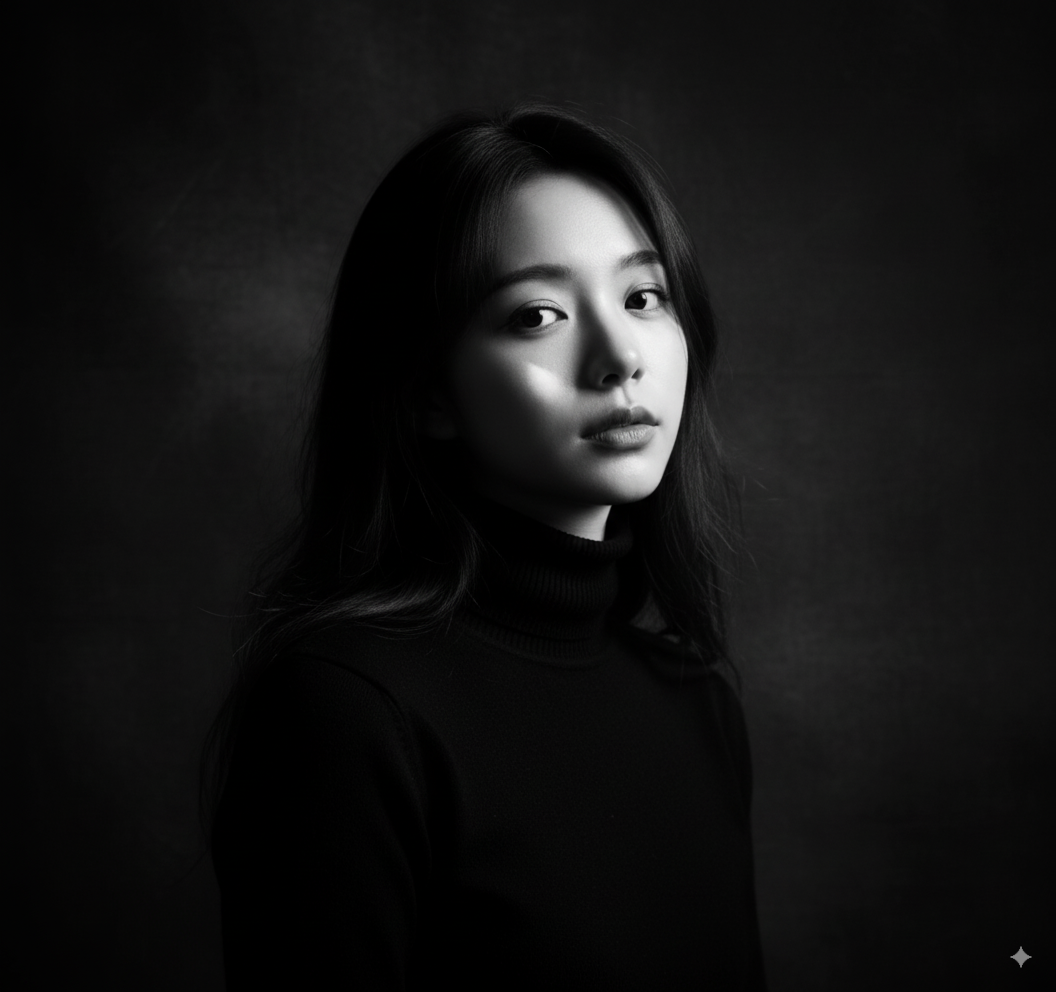
Discover 6 Powerful AI Prompt Styles: From Dramatic Portraits to Surreal Art
Unlock the potential of AI image generation with six distinctive prompt styles - from timeless black and white photography to surreal marble sculptures, vintage grunge aesthetics to cinematic neon-lit scenes. Learn how to transform your photos into professional-quality art.
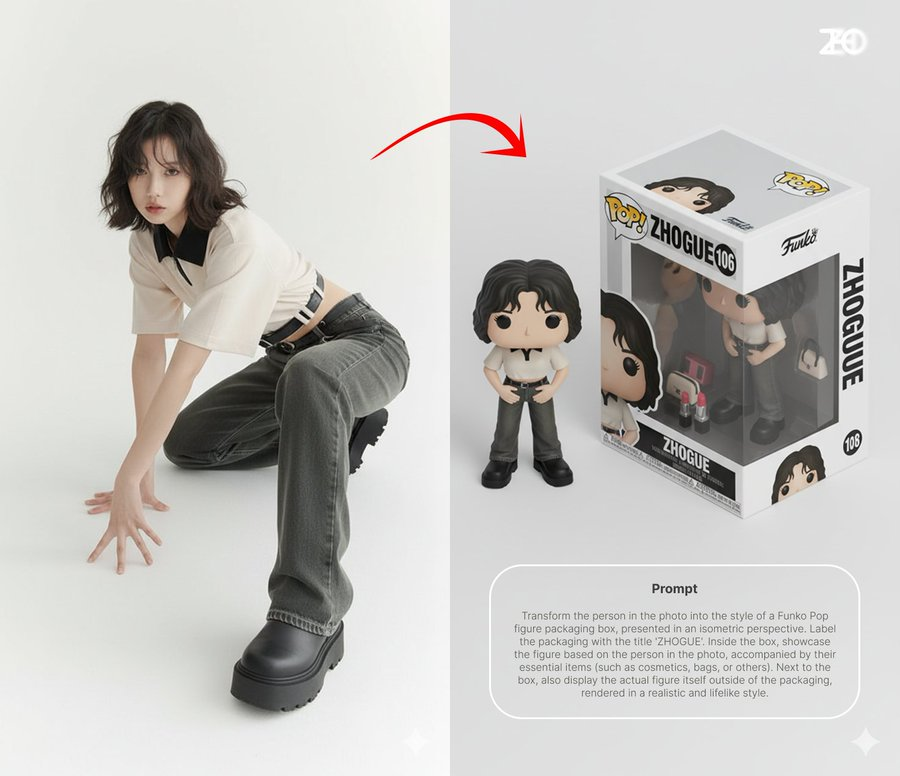
The Viral ChatGPT Caricature Prompt: How to Roast Yourself Professionally
Looking for the viral ChatGPT caricature prompt? Get 30+ copy-paste prompts for every job (Tech, Medical, Corporate). Master the 3D Pixar, Cyberpunk, and Editorial styles instantly.
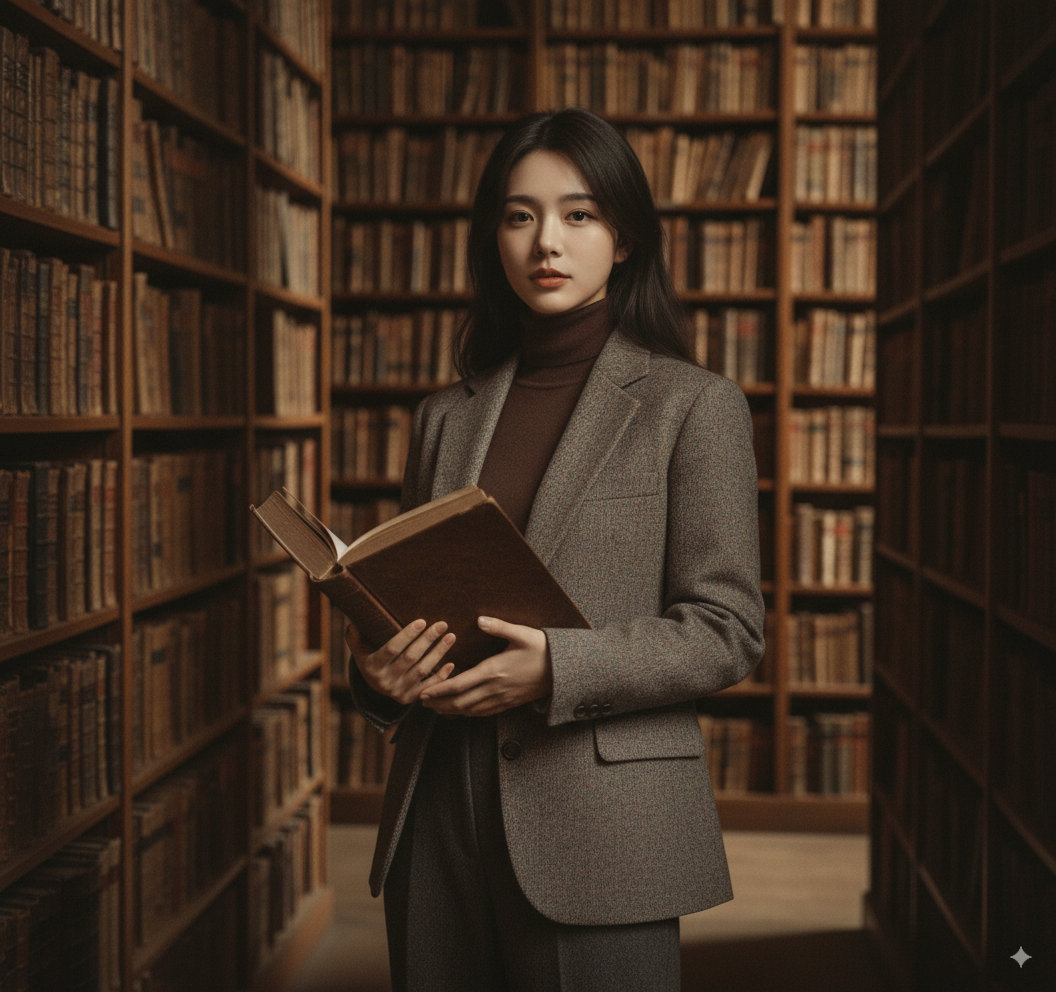
Explore 6 Unique AI Transformations: From Academia to Anime Reality
Discover six distinctive AI image generation styles - from Dark Academia elegance to Gundam mecha transformations, minimalist fashion to anime-to-real conversions. Learn how to transform your photos with professional techniques and creative prompts.